CompTIA A+ Core 1 (220-1201) Study Guide
A Practical Overview to Help You Pass the Exam
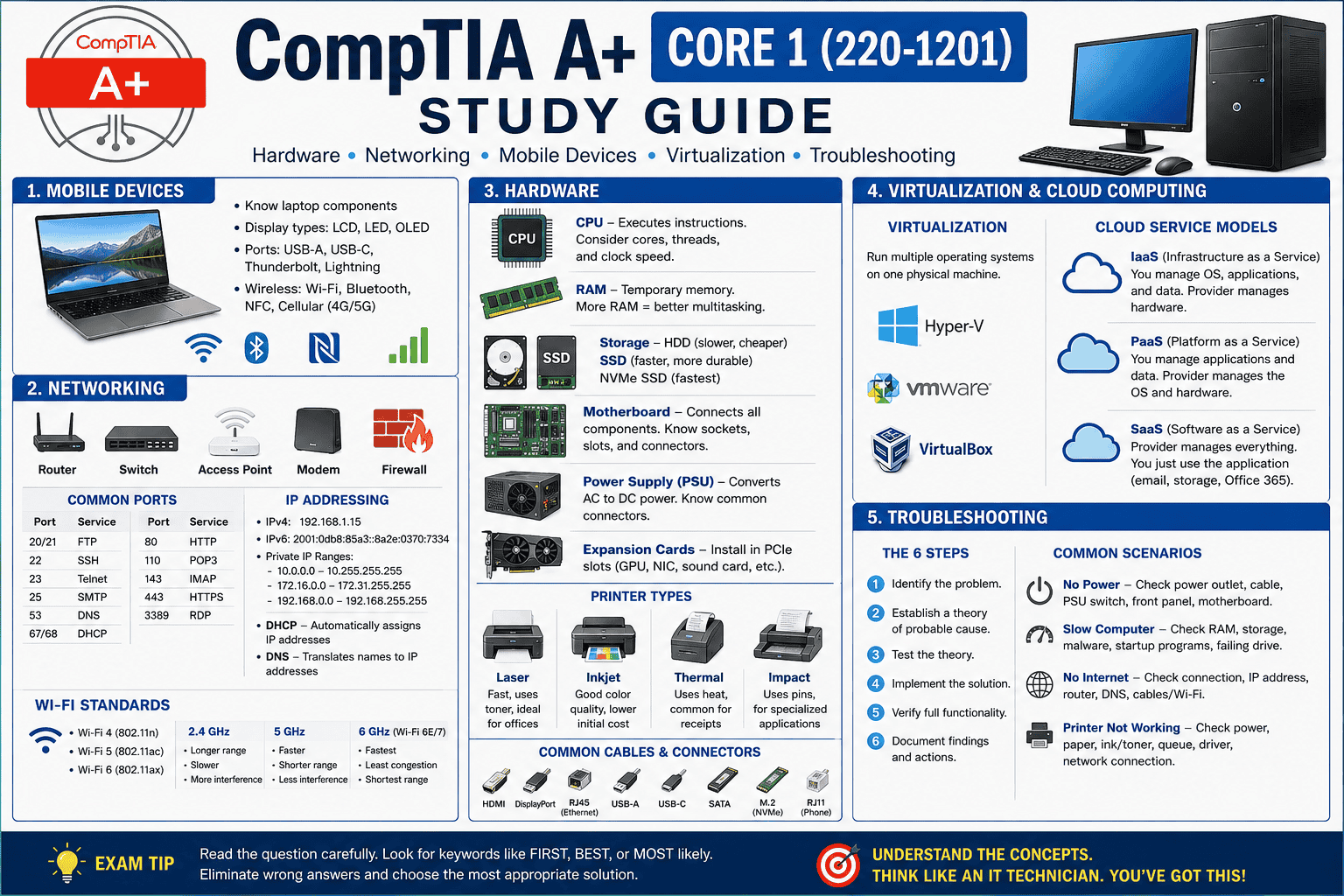
The CompTIA A+ Core 1 (220-1201) exam focuses on the hardware, networking, mobile devices, virtualization, cloud computing, and troubleshooting skills expected of an entry-level IT support technician. Rather than memorizing every specification, the exam tests whether you understand how technology works together and how to solve common problems.
If you understand the concepts in this guide and can recognize common scenarios, you’ll have a solid foundation for passing the CompTIA A+ Core 1 exam.
What Does Core 1 Cover?
CompTIA divides the Core 1 exam into five primary domains:
- Mobile Devices – 13%
- Networking – 23%
- Hardware – 25%
- Virtualization & Cloud Computing – 11%
- Hardware and Network Troubleshooting – 28%
Many questions are scenario-based, asking what you would do first or which solution best resolves a problem.
Mobile Devices
You should understand how laptops and mobile devices differ from desktop computers.
Know the major laptop components
- Battery
- Keyboard
- Touchpad
- Webcam
- Display
- Wireless antenna
- SSD (Solid-state drives) /HDD (Hard disk drives)
- Memory (RAM)
Understand which components are commonly replaceable and which are integrated.
Display Types
Know the differences between:
- LCD (Liquid crystal display)
- LED (Light emitting diode)
- OLED (Organic light-emitting diode)
OLED displays provide excellent contrast and deeper blacks but typically cost more.
Mobile Device Connections
Know these ports:
- USB-A
- USB-C
- Thunderbolt
- Lightning (Apple)
USB-C is quickly becoming the universal standard because it supports:
- Data
- Charging
- Video
- Docking stations
Wireless Technologies
Know the basics of:
- Bluetooth
- NFC
- Wi-Fi
- Cellular (4G/5G)
Example:
Bluetooth = short-range peripherals
Wi-Fi = Internet connection
NFC = tap-to-pay
Networking
Networking is one of the largest portions of CompTIA A+ Core 1.
Don’t try to memorize everything at once. Learn what each device actually does.
Common Network Devices
Router
Routes traffic between different networks.
Usually connects your home network to the Internet.
Switch
Connects devices inside the same network.
Example:
Computer → Printer
Computer → Server
Access Point (AP)
Provides wireless connectivity to an existing wired network.
Modem
Converts signals from your Internet provider into something your router can use.
Firewall
Filters network traffic.
Can block malicious connections.
Common Ports
These appear frequently on the exam.
| Port | Protocol | Purpose |
|---|---|---|
| 20/21 | FTP | File Transfer |
| 22 | SSH | Secure remote access |
| 23 | Telnet | Insecure remote access |
| 25 | SMTP | Sending email |
| 53 | DNS | Name resolution |
| 67/68 | DHCP | IP addressing |
| 80 | HTTP | Web traffic |
| 110 | POP3 | Email retrieval |
| 143 | IMAP | Email retrieval with synchronization |
| 443 | HTTPS | Secure websites |
| 3389 | RDP | Remote Desktop |
Tip: If you know what each service does, remembering the port becomes much easier.
IP Addresses
Know the difference between:
IPv4
Example:
192.168.1.15
32-bit addressing
IPv6
Much longer addresses.
Designed to replace IPv4 because IPv4 addresses are limited.
Public vs Private IP
Private IP addresses stay inside your network.
Examples:
- 10.x.x.x
- 172.16–31.x.x
- 192.168.x.x
Public IP addresses are visible on the Internet.
DHCP
Automatically assigns IP addresses.
Without DHCP, every computer would require manual configuration.
DNS
Translates names into IP addresses.
Example:
↓
93.184.xxx.xxx
Humans remember names.
Computers communicate with IP addresses.
Wi-Fi Standards
Know the generations:
- Wi-Fi 4 (802.11n)
- Wi-Fi 5 (802.11ac)
- Wi-Fi 6 (802.11ax)
Also understand:
2.4 GHz
- Longer range
- Slower
- More interference
5 GHz
- Faster
- Shorter range
6 GHz (Wi-Fi 6E/7)
- Fastest
- Least congestion
- Shortest practical range
Hardware
Expect many questions involving PC components.
CPU
The processor executes instructions.
Important concepts:
- Clock speed
- Number of cores
- Threads
- Cooling
RAM
Temporary working memory.
More RAM allows more applications to run simultaneously.
RAM is lost when power is removed.
Storage
HDD
- Mechanical
- Slower
- Less expensive
SSD
- No moving parts
- Faster
- More durable
- Lower power consumption
NVMe SSD
Even faster than SATA SSDs because they communicate directly through PCIe lanes.
Motherboard
The backbone of the computer.
Connects every major component together.
Know:
- CPU socket
- RAM slots
- PCIe slots
- M.2 slots
- SATA ports
- Power connectors
Power Supply (PSU)
Converts AC wall power into DC voltages used by the computer.
Know common connectors:
- 24-pin motherboard
- CPU power
- PCIe GPU
- SATA power
Expansion Cards
Examples:
- Graphics cards
- Network cards
- Sound cards
- RAID controllers
These typically install into PCIe slots.
Printers
CompTIA loves printer questions.
Know the four major types.
Laser
- Uses toner.
- Fast.
- Excellent for offices.
Inkjet
- Uses liquid ink.
- Good color quality.
- Lower initial cost.
Thermal
- Uses heat.
- Common for receipts.
- No ink cartridges.
Impact
- Uses striking pins.
- Still found with multipart forms and specialized industrial applications.
Cables and Connectors
Know these well.
Video:
- HDMI
- DisplayPort
- VGA
- DVI
USB:
- USB-A
- USB-C
- Micro USB
Networking:
- RJ45 (Ethernet)
Phone:
- RJ11
Storage:
- SATA
- M.2
- NVMe
Virtualization
Virtualization allows one physical computer to run multiple operating systems.
Examples:
- Windows
- Linux
- Windows Server
All on one machine.
Common hypervisors include:
- Hyper-V
- VMware
- VirtualBox
Cloud Computing
Know the service models.
IaaS
- Infrastructure as a Service
- You manage the operating system.
- Provider manages the hardware.
PaaS
Platform as a Service
Provider manages:
- Hardware
- Operating System
You manage your application.
SaaS
- Software as a Service
- Everything is managed by the provider.
- Examples include web-based email, cloud storage, and online productivity suites.
This is the easiest model for end users.
Troubleshooting
CompTIA heavily emphasizes troubleshooting methodology.
Remember the six steps:
- Identify the problem.
- Establish a theory of probable cause.
- Test the theory.
- Create a plan and implement the solution.
- Verify full system functionality.
- Document findings and actions.
Notice that documentation comes last, after confirming the issue has truly been resolved.
Common Troubleshooting Scenarios
Computer won’t power on
Check:
- Power outlet
- PSU switch
- Power cable
- Front panel button
- Motherboard power
Slow computer
Possible causes:
- Low RAM
- Full storage drive
- Malware
- Too many startup programs
- Failing hard drive
No Internet
Check:
- Wi-Fi connected?
- Ethernet cable plugged in?
- IP address assigned?
- Router online?
- DNS working?
Printer not printing
Check:
- Power
- Paper
- Toner or ink
- Correct printer selected
- Print queue
- Network connection
Exam Tips
CompTIA A+ Core 1 often gives several answers that seem correct. Your goal is to choose the best answer based on the information provided.
Remember these principles:
- Read the last sentence first to understand what the question is asking.
- Look for keywords such as FIRST, BEST, or MOST likely.
- Eliminate obviously incorrect answers before making your selection.
- Think like a help desk technician—start with the simplest, least disruptive solution before replacing hardware.
- Understand concepts instead of memorizing isolated facts. If you know what a device or protocol does, you can often determine the correct answer even if you don’t remember every specification.
Final Review Checklist
Before taking the CompTIA A+ Core 1 exam, make sure you can confidently explain:
- ✓ Computer hardware and internal components
- ✓ Laptop hardware and mobile devices
- ✓ Networking devices and basic network design
- ✓ Common TCP/UDP ports and protocols
- ✓ IP addressing, DHCP, and DNS
- ✓ Wi-Fi standards and wireless security
- ✓ Printers and their maintenance
- ✓ Common connectors and cables
- ✓ SSD vs HDD vs NVMe storage
- ✓ Virtualization and cloud service models
- ✓ The CompTIA troubleshooting methodology
- ✓ How to diagnose common hardware and networking issues
Mastering these core topics will prepare you for the majority of the CompTIA A+ Core 1 objectives. While some questions require memorization—such as common ports, connectors, and wireless standards—the exam primarily rewards your ability to apply knowledge to real-world support scenarios. Focus on understanding how systems interact, practice troubleshooting logically, and you’ll be well prepared not only to pass the exam but also to succeed in an entry-level IT support role.
If you’re ready to get certified, go to Comp TIA website: