CompTIA A+ Core 2 (220-1202) Study Guide
A Practical Overview to Help You Pass the Exam
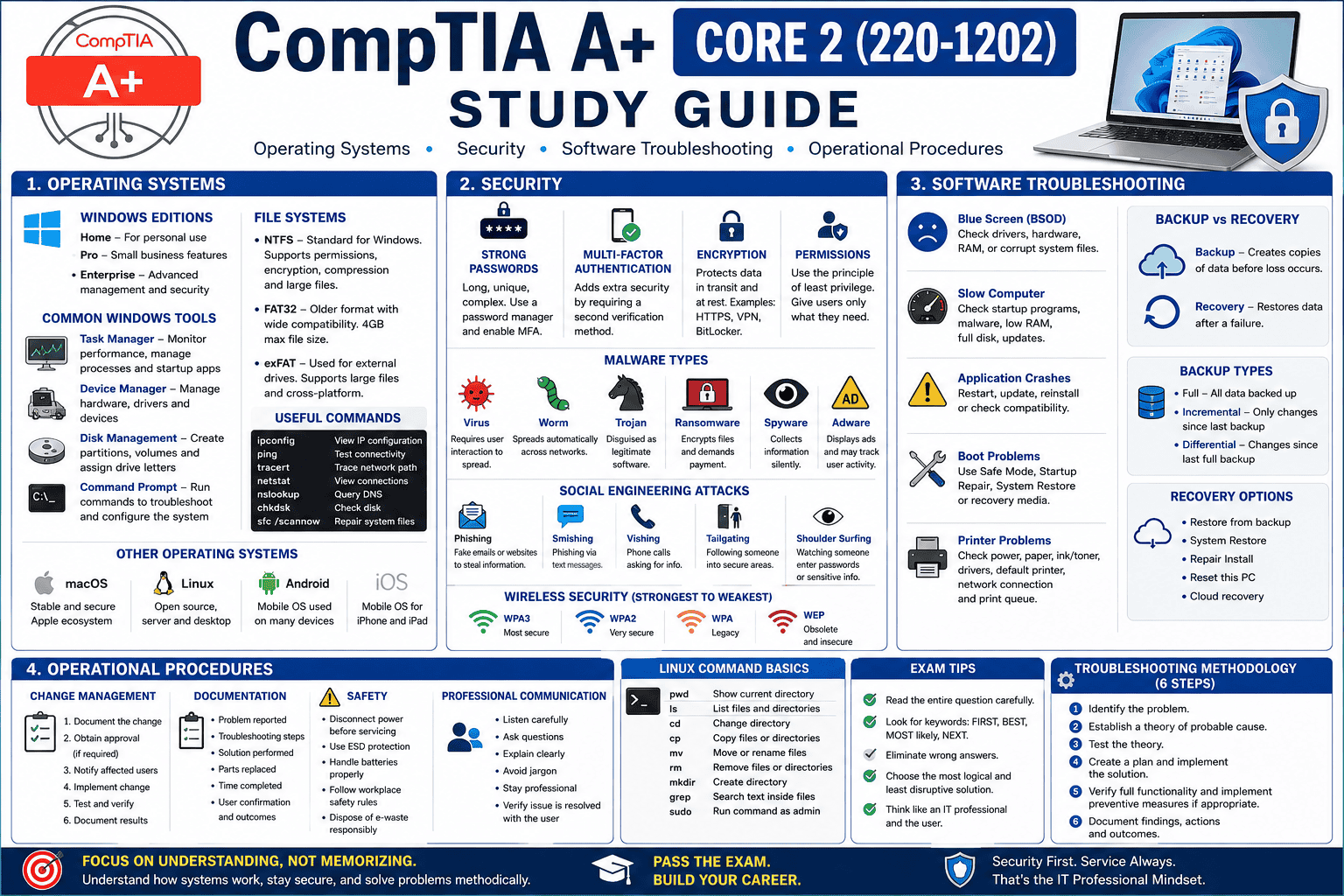
The CompTIA A+ Core 2 (220-1202) exam focuses on operating systems, security, software troubleshooting, operational procedures, and the professional skills expected of an IT support technician. While Core 1 teaches you about hardware and networking, Core 2 teaches you how to secure, configure, and maintain the systems people use every day.
Many exam questions are scenario-based, asking you to determine the best, first, or most appropriate action. Understanding why something works is far more valuable than simply memorizing facts.
What Does Core 2 Cover?
The exam is divided into four major domains:
- Operating Systems – 28%
- Security – 28%
- Software Troubleshooting – 23%
- Operational Procedures – 21%
These topics closely resemble the work performed by help desk technicians, desktop support specialists, and junior system administrators.
Operating Systems
Operating systems are the heart of Core 2.
Most questions focus on Microsoft Windows, but you should also understand the basics of macOS, Linux, Android, and iOS.
Windows Editions
Know the common Windows editions:
- Home
- Pro
- Enterprise
Windows Pro adds business features such as:
- BitLocker
- Remote Desktop Host
- Group Policy
- Domain Join
- Hyper-V (supported hardware required)
Common Windows Tools
Know what these utilities do.
Task Manager
Used to:
- End frozen applications
- Monitor CPU and memory usage
- View startup applications
- Restart Windows Explorer
Device Manager
Shows installed hardware.
Used to:
- Update drivers
- Disable devices
- View hardware errors
- Uninstall devices
A yellow warning icon often indicates a driver or hardware issue.
Disk Management
Used to:
- Create partitions
- Extend volumes
- Assign drive letters
- Initialize new drives
Command Prompt
Important commands include:
- ipconfig – View network configuration
- ping – Test connectivity
- tracert – Trace network path
- netstat – View network connections
- nslookup – Query DNS
- chkdsk – Check storage drives
- sfc /scannow – Repair Windows system files
File Systems
NTFS
The standard Windows file system.
Supports:
- Permissions
- Encryption
- Compression
- Large files
FAT32
Older format.
Advantages:
- Excellent compatibility
Limitations:
- Maximum file size of 4 GB
- No file permissions
exFAT
Commonly used for flash drives and external storage.
Supports very large files and works across Windows and macOS.
Security
Security is one of the most important sections of the exam.
CompTIA expects technicians to recognize threats and follow best practices.
Strong Passwords
Good passwords should be:
- Long
- Unique
- Complex
- Never reused
Using a password manager is considered a best practice.
Whenever possible, enable Multi-Factor Authentication (MFA).
Malware Types
Know the differences.
Virus
Requires user interaction to spread.
Worm
Spreads automatically across networks.
Trojan
Pretends to be legitimate software.
Ransomware
Encrypts files and demands payment.
Spyware
Collects information without the user’s knowledge.
Adware
Displays unwanted advertisements and may track user behavior.
Social Engineering
Many attacks target people instead of computers.
Common attacks include:
Phishing
Fake emails designed to steal information.
Smishing
Phishing through text messages.
Vishing
Phone-based scams.
Tailgating
Following an authorized employee into a secure area without permission.
Shoulder Surfing
Watching someone enter passwords or sensitive information.
Wireless Security
Know the major Wi-Fi security standards.
From strongest to weakest:
- WPA3
- WPA2
- WPA (legacy)
- WEP (obsolete and insecure)
Avoid using WEP except in legacy environments.
Encryption
Encryption protects data from unauthorized access.
Examples include:
- HTTPS
- VPNs
- BitLocker
- FileVault
Permissions
Understand the principle of least privilege.
Users should receive only the permissions necessary to perform their jobs.
Limiting access reduces the impact of mistakes and cyberattacks.
Software Troubleshooting
CompTIA expects technicians to solve common software problems.
Blue Screen (BSOD)
Possible causes include:
- Bad drivers
- Faulty RAM
- Hardware failures
- Corrupt Windows files
Slow Computer
Check for:
- Startup programs
- Malware
- Low RAM
- Full storage drive
- Background applications
- Windows updates
Application Crashes
Possible solutions:
- Restart application
- Reboot computer
- Reinstall software
- Update drivers
- Install updates
Boot Problems
Know common recovery tools.
- Safe Mode
- Startup Repair
- System Restore
- Recovery Environment
- Bootable USB
Printer Problems
Common issues include:
- Offline printer
- Paper jams
- Incorrect driver
- Empty toner or ink
- Print queue stuck
Always verify the simplest causes before replacing hardware.
Operational Procedures
This section measures professionalism as much as technical knowledge.
Change Management
Before making major changes:
- Document the change
- Obtain approval when required
- Notify affected users
- Test the solution
- Document the outcome
Good documentation reduces future troubleshooting time.
Documentation
Technicians should record:
- Problem reported
- Troubleshooting steps
- Solution performed
- Parts replaced
- Time completed
- User confirmation
Good notes help both coworkers and future technicians.
Safety
Always work safely.
Examples include:
- Disconnect power before servicing equipment
- Use proper ESD (Electrostatic Discharge) protection
- Handle batteries properly
- Follow workplace safety procedures
- Dispose of electronic waste responsibly
Professional Communication
One of the easiest ways to lose points is forgetting customer service.
Always:
- Listen carefully
- Ask clarifying questions
- Avoid unnecessary technical jargon
- Explain solutions clearly
- Remain professional
- Verify the issue is resolved
Remember:
You’re solving problems for people—not just computers.
Backup and Recovery
Know the difference.
Backup
Creates copies of important files.
Examples:
- Full
- Incremental
- Differential
Recovery
Restores information after failure.
Always verify backups before assuming they will work.
Troubleshooting Methodology
CompTIA uses the same six-step process throughout the exam.
- Identify the problem.
- Establish a theory of probable cause.
- Test the theory.
- Create a plan and implement the solution.
- Verify full functionality and implement preventive measures if appropriate.
- Document findings, actions, and outcomes.
This process appears repeatedly throughout Core 2.
Linux Basics
You are not expected to become a Linux administrator, but you should recognize common commands.
| Command | Purpose |
|---|---|
| pwd | Show current directory |
| ls | List files |
| cd | Change directory |
| cp | Copy files |
| mv | Move or rename files |
| rm | Remove files |
| mkdir | Create directory |
| grep | Search text |
| sudo | Run with elevated privileges |
Know what these commands accomplish rather than memorizing every option.
macOS Basics
Recognize common macOS features:
- Finder
- Dock
- Spotlight Search
- Time Machine backups
- System Settings
CompTIA generally asks only basic support questions regarding macOS.
Exam Tips
Many questions provide multiple answers that seem correct.
Look for keywords such as:
- FIRST
- BEST
- MOST likely
- NEXT
CompTIA usually expects the least disruptive, most secure, or most logical answer rather than the most complicated one.
Read every answer carefully before selecting one.
Final Review Checklist
Before taking the Core 2 exam, make sure you understand:
- ✓ Windows installation and configuration
- ✓ Windows utilities and troubleshooting tools
- ✓ File systems (NTFS, FAT32, exFAT)
- ✓ Malware identification and removal
- ✓ Password security and Multi-Factor Authentication
- ✓ Social engineering attacks
- ✓ Wi-Fi security standards
- ✓ Encryption concepts
- ✓ Software troubleshooting techniques
- ✓ Backup and recovery methods
- ✓ Linux command basics
- ✓ macOS fundamentals
- ✓ Operational procedures and documentation
- ✓ Professional communication and customer service
- ✓ The CompTIA troubleshooting methodology
Passing the CompTIA A+ Core 2 exam requires more than technical knowledge—it requires thinking like a professional IT support technician. Focus on security first, troubleshoot methodically, document your work, and always choose the solution that is both effective and minimally disruptive. Master these concepts and you’ll not only be well prepared for the exam but also for the real-world responsibilities of an entry-level IT professional.
Ready to take the test? Go to CompTIA and sign up